
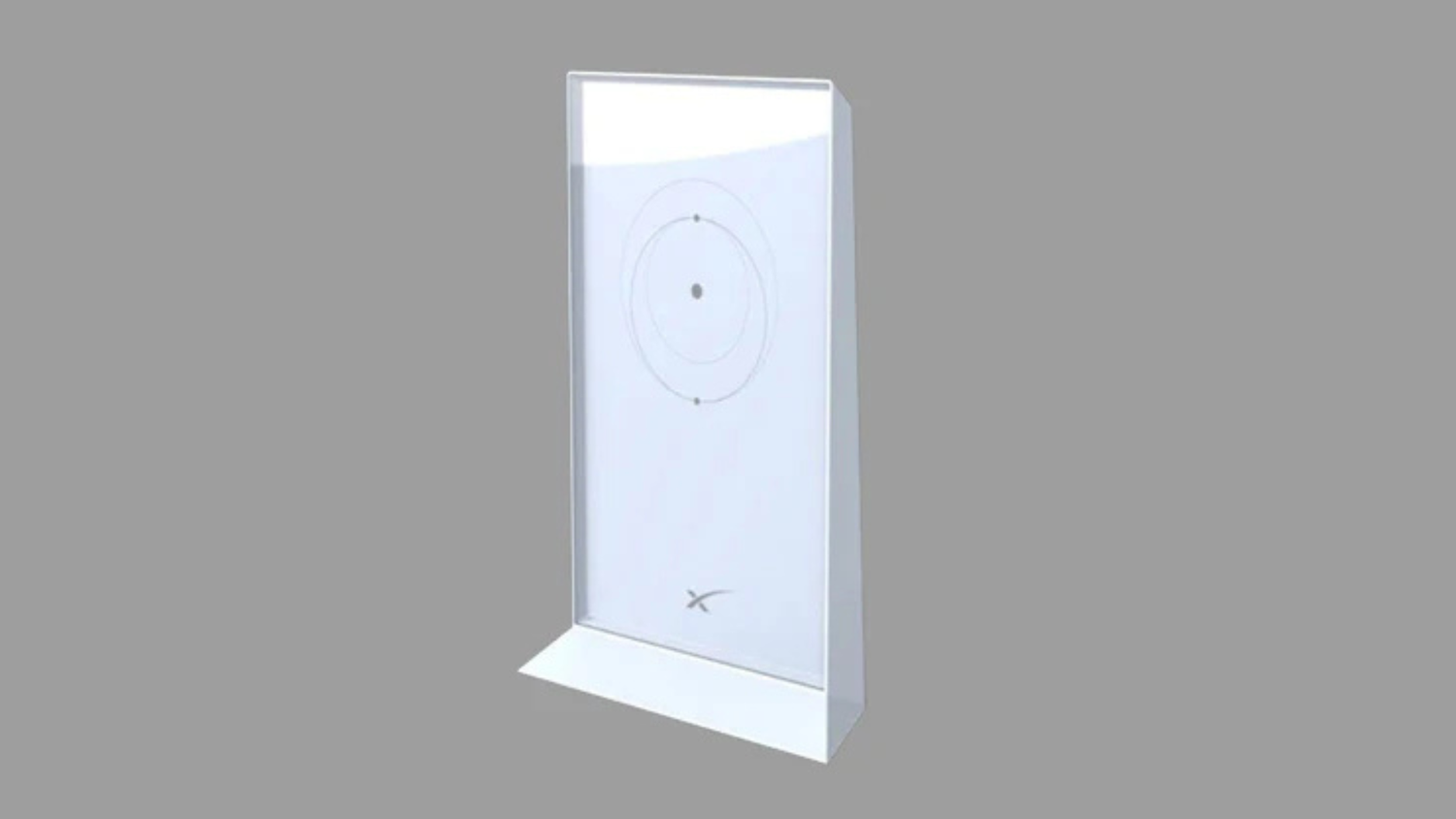
Why Your Starlink WiFi Signal Needs a Boost
Battling WiFi dead zones in your home, shed, or across your property? Starlink delivers incredible speed, but its standard router often struggles to cover large Australian homes, especially with signal blockers like thick walls, metal roofs, or corrugated iron.
To extend your Starlink WiFi signal effectively, you have several great options:
- Third-Party Mesh or Extenders – Flexible options that connect to your router for whole-home coverage.
- Wired Access Points – The most reliable connection for specific areas.
- Point-to-Point Bridges – Best for reaching outbuildings over 50 metres away.
- Optimise Router Placement – A crucial first step before buying new hardware.
First Steps: Map and Optimise Your Coverage
Before buying hardware, start with two simple steps. First, use the Starlink App to map your existing coverage. The "Range" feature creates a visual map of your signal strength as you walk around, instantly showing you where the dead zones are. You can also check the "Network" tab to see the signal strength of individual devices. For more details, check out the official Starlink set up guide.
Second, optimise your router's position. A few small adjustments can make a huge difference.
- Go Central: Place the router in a central location, not tucked away in a corner or cupboard.
- Get it High: Position it on a shelf or table, at least halfway up the room, to help the signal travel over furniture.
- Avoid Blockers: Minimise walls between the router and your devices. Keep it away from metal, concrete, and major appliances like microwaves.
For more tips, see our guide on Boosting Starlink Wi-Fi: Simple steps for better connectivity. If these steps don't solve your issues, it's time to explore extension hardware.
How to Extend Starlink WiFi Signal: Key Methods and Best Practices
Once you've optimised your router placement, it's time to choose an extension method. The right choice depends on your property's layout, the distance you need to cover, and your budget. Whether you have a Gen 2, Gen 3, or Starlink Mini system, we offer a range of Gen 3/V4 Mounts and Accessories and Starlink Mini accessories to support your setup.
Going Third-Party: Using Other Mesh Systems, Extenders, or Access Points
If you want more features or wish to use existing equipment, third-party devices are a great option. To connect them, you'll need an Ethernet Adapter to add a wired port to your Starlink router. This allows for a wired backhaul, providing the fastest and most stable connection to your extension devices. Options include third-party mesh systems, budget-friendly WiFi extenders, or high-performance wired access points. While some Starlink App features may be limited, this approach offers maximum flexibility. Find the right fit with our guide to the best mesh systems for Starlink users.
| Feature | Third-Party Extenders | Wired Access Points (AP) |
|---|---|---|
| Ease of Setup | Moderate (WPS/App/Web) | Moderate (Configuration) |
| Performance | Variable (Can reduce speed) | Excellent (Wired backhaul) |
| Cost | Low to Moderate | Moderate to High |
| App Integration | Limited | Limited |
| Reliability | Moderate | Very High |
| Ethernet Adapter Required | Yes (for best performance) | Yes |
Advanced Solutions: Reaching Outbuildings and Mobile Setups
To get WiFi to a separate shed, workshop, or granny flat more than 50 metres away, a standard mesh system won't cut it. The best solution is a point-to-point (P2P) wireless bridge. These devices create a powerful, directional wireless link that acts like an invisible Ethernet cable. Success depends on two things: a clear line of sight between the two units and using outdoor-rated equipment that can withstand harsh Australian weather. For mobile setups in caravans or RVs, our durable Starlink RV and Portability Mounts ensure your dish stays secure on the move.

Troubleshooting and Finalising Your Extended Network
If your extended network isn't performing as expected, try these quick troubleshooting steps before making any major changes.
- Power Cycle Everything: Turn off your Starlink dish, router, and all extension devices. Wait 30 seconds, then power them back on, starting with the dish, then the router, then the extenders.
- Check for Updates: Ensure your third-party extenders or mesh nodes have the latest firmware installed. Starlink updates automatically.
- Review Placement: Use the Starlink App's "Range" and "Network" tools to check signal strength. A mesh node might be too far from the router, or a P2P bridge might have an obstructed line of sight.
- Minimise Interference: Keep routers and nodes away from microwaves, cordless phones, and other dense materials.
Your Next Steps for a Flawless Starlink Experience
Extending your WiFi is a great step, but a reliable connection starts at the source. The most advanced network setup is only as good as the signal your Starlink dish receives from the satellites. In Australia's harsh climate, a secure, stable, and correctly installed dish is non-negotiable.
That's why we engineer SpaceTek mounts for Australian conditions. Made from high-quality, rust-resistant materials like aluminium and carbon fibre, our mounts ensure your dish stays put through heat, rain, and wind. They are designed for easy self-installation and provide the stability needed for peak performance. Whether you need a Gen 3/V4 mount, Starlink Mini accessories, or a solution for your caravan with our RV and portability mounts, we have gear built to last.
For more tips, explore our guide with expert tricks to upgrade your Starlink experience.
Every property is unique. If you need help designing the perfect setup for your homestead or mobile rig, don't hesitate to contact us for expert advice.

Leave a comment
This site is protected by hCaptcha and the hCaptcha Privacy Policy and Terms of Service apply.